If you already run screens — maybe a mix of HootBoard devices and others you've had for years — you don't want to re-enter every one by hand just to start earning from them. AdSpace lets you bring your whole inventory in quickly, including screens that aren't HootBoard's, so nothing gets left out of the money.
Two ways to add screens
- Add Screen Manually — for a single new screen, fill in a short form and it's in. No CSV needed for a one-off.
- Bulk Upload CSV — got a lot of screens? Add them all at once. Download the CSV template, fill in your screens, and upload.
Either way, your external screens land in your inventory alongside everything else, ready to be set up for ads.
One screen? It's a short form
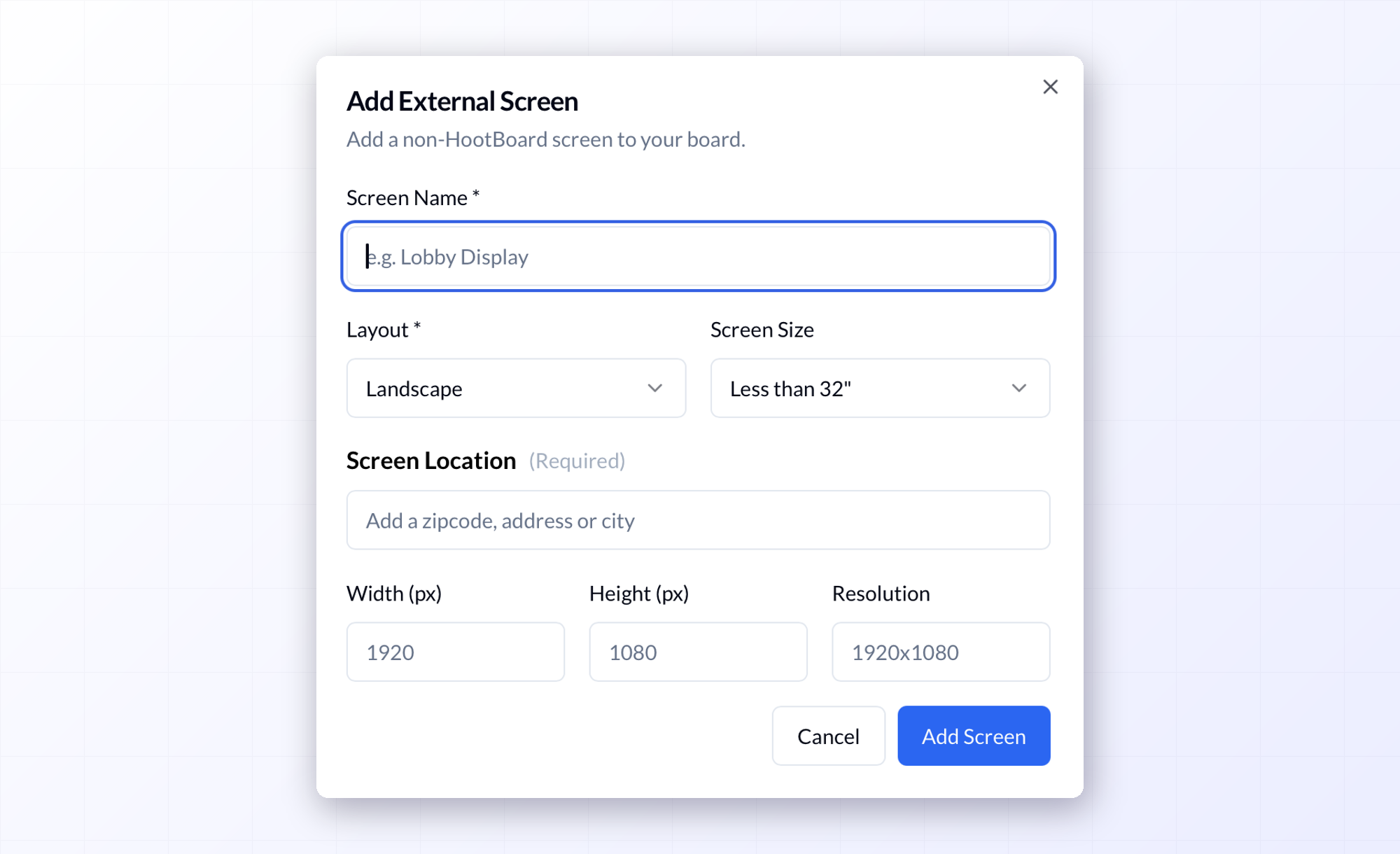
Adding a screen by hand takes a minute. Name it, pick its layout (landscape or portrait) and size class, and drop in its location — a ZIP code, address, or city. If you know the pixel dimensions and resolution, add those too, so advertisers can match the right creative to it. Hit Add Screen and it's part of your inventory.
Built for real-world inventory
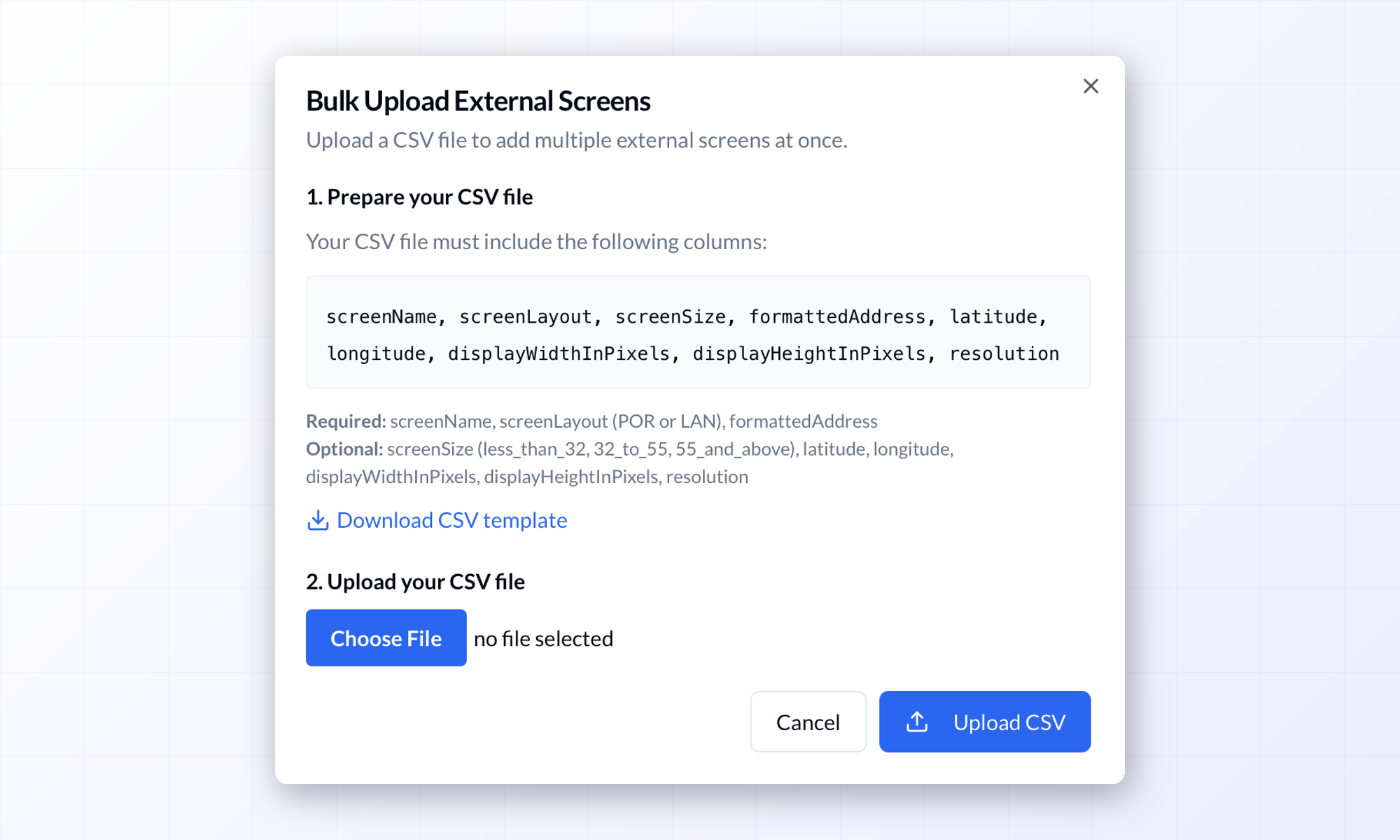
The bulk uploader is made for the messy reality of an existing screen portfolio. Only three columns are required — a screen's name, its layout, and its address. Everything else (size class, coordinates, pixel dimensions, resolution) is optional detail you can add when you have it, and there's a CSV template to download, so you're filling in a ready-made file rather than guessing at a format.
It checks each row as it goes and flags problems by line — so if a row is missing an address or has a layout it doesn't recognize, you know exactly which one and why, instead of a vague "upload failed." Fix the flagged rows and you're done. You capture what matters to advertisers, too: where each screen is, how it's oriented, and what it can display — the information that lets advertisers find and value your screens once they're in.
Why importing matters
Every screen sitting outside the system is a screen earning nothing from ads. The faster you bring your inventory in, the faster all of it can start working. For an owner with dozens of screens across locations, bulk upload turns what would be an afternoon of data entry into a single file and a click.
It also means you're not locked into one kind of hardware. Screens you bought from anyone, running anywhere, can join your AdSpace inventory and earn alongside the rest.
From import to earning
Importing is the first step, not the last — but it's the one that usually stalls people. Once your screens are in, each is ready to set up for ads and start earning, the same as any HootBoard screen. So the few minutes you spend on a CSV aren't busywork; they're what moves a shelf of underused screens into a position to make money. The sooner they're in, the sooner the whole portfolio is working for you.
Get your whole portfolio earning
You've already invested in the screens. Importing them is how you get all of them — not just the easy ones — into a position to earn. Bring them in once, and your full inventory is ready to set up for ads.